
This is the heart of what makes the bot tick, this is where you can setup various
triggers for the bot to watch for,
which account it is to work with, the nick name to use it on, the message to
send and the enforcement action to take.
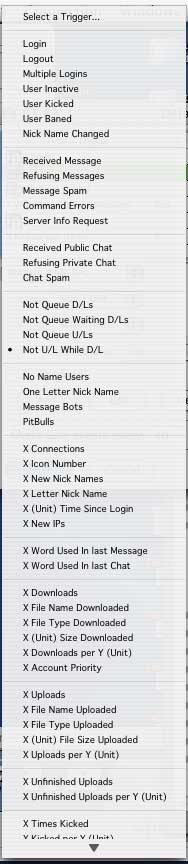
Trigger |
Description |
| (Off) | You can select this to turn off an event without having to delete it. |
| Login | When a user first logs in. |
| Received message | When a message is received from a user. |
| Command errors | When a message is received with the / (command character) but a malformed command. |
| Server info request | When a message is received with the /serverinfo command. |
| User inactive | When a user has not been active for a while (no Uploads, Downloads or queued files). |
| Not queue D/L's | When a user does not queue downloads. |
| Not queue waiting D/L's | When a user does not queue waiting downloads. |
| Not queue U/L's | When a user does not queue uploads. |
| Not U/L while D/L | When a user does not queue upload at the same time as downloading. |
| Multiple logins | When a user logs in more than once at the same time. |
| No name users | When a user has no name. |
| One letter nick name | When a user only has a single letter for a nick name. |
| Spam bot | When user spam's the bot with messages. |
| Message bot's | When user appears to be a message bot (looks for URL's etc.). |
| Pitbulls | When user appears to be a download bot. |
| X connections | When the user has connected a specified number of times. |
| X new nick names | When user changes nick names a specified number of times. |
| X new IP's | When user changes IP a specified number of times. |
| X downloads | When user downloads a specified number of files. |
| X uploads | When user uploads a specified number of files. |
| X unfinished uploads | When user has a specified number of unfinished uploads. |
| X letter nick name | When a user has a specified number of letters in a nick name. |
| X word used in last message | When user messages the bot a message with a specific word or words (such as "help", "sucks" etc.) contained in it. |
| X times kicked | When a user has been kicked a preset number of times. |
| X times temp. banned | When a user has been temporarily banned a preset number of times. |
NOTE:
All of the "X" function specified info is to be entered in the "X"
field, with the Y functions entered in the "Y" field.
This is where you can specify a number of times for something to happen, or a word to watch for (if X letter nick name or X word in last message is selected)
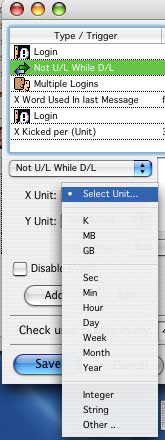
As you can see from the list above, it has several options available, an "Integer" is any number, a "String" is text, letters or words.
This is where you can tell it to perform the action for a specified account only, if you leave this field blank it will appear as ***default*** in the list, which means it applies to all accounts, if you specify an account, such as "guest" it will look for the specified trigger only in the guest account.
This works in the same way as the account, only for the nick name, you can also specify both the account and a nick name, very handy for bot's that login with a certain name, or it can be setup to message a certain person when they login, you will find this very useful !
This works in the same way as the account and the nick name, only for the IP, you can also specify the IP address of the user.
This is simply a check mark to indicate if a message has been set with the event, the message can be viewed by clicking on the event and looking at the message panel
This is simply a check mark to indicate if an enforcement action has been set with the event, the action can be viewed by clicking on the event and looking at the Enforcement menu.
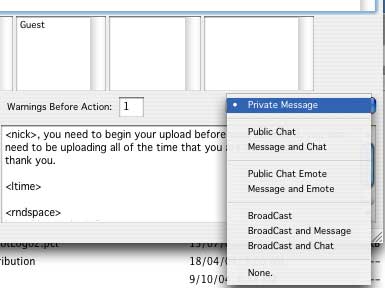
This is where you type your message that is to be sent to the user when the trigger matches the preset conditions, there are a few options here, you can send the user a private message, or a chat message, or even a broadcast to all users, as you can see from the list below there are plenty of communication options:
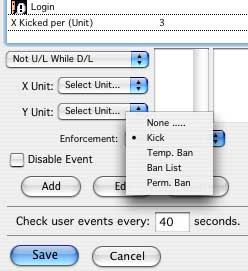
There is a bug in the Hotline Server software, that causes it to crash if a temporary ban is used, it is not a bug in the bot, but the server itself, even the original hotline client causes it to happen, so, we recommend that you do not use the temporary ban option.
To setup a message event or a trigger action just select the trigger to watch for, the X event, the account, the nick name, the IP, the message and the enforcement action, you do not need to specify all of these, I will give you an example of how to setup a welcome message at user login:
To create an enforcement action it works in exactly the same way, but you can specify it a little differently, here is an example of a basic enforcement action:
The bot will now send a message to anyone on the account you set it up for when
they download a file without uploading
at the same time,once the message has been sent it will disconnect the user.
If you wish to disable a message event but not remove it from the list, click on the event to highlight it, then click on the checkbox "Disable Event" to turn the event on and off, then click the edit button, when the checkbox is ticked the event will be ignored.
This counter shows the number of hits since the 21 September 2003
Copyright © S&M Software 2004-2016